
View findings
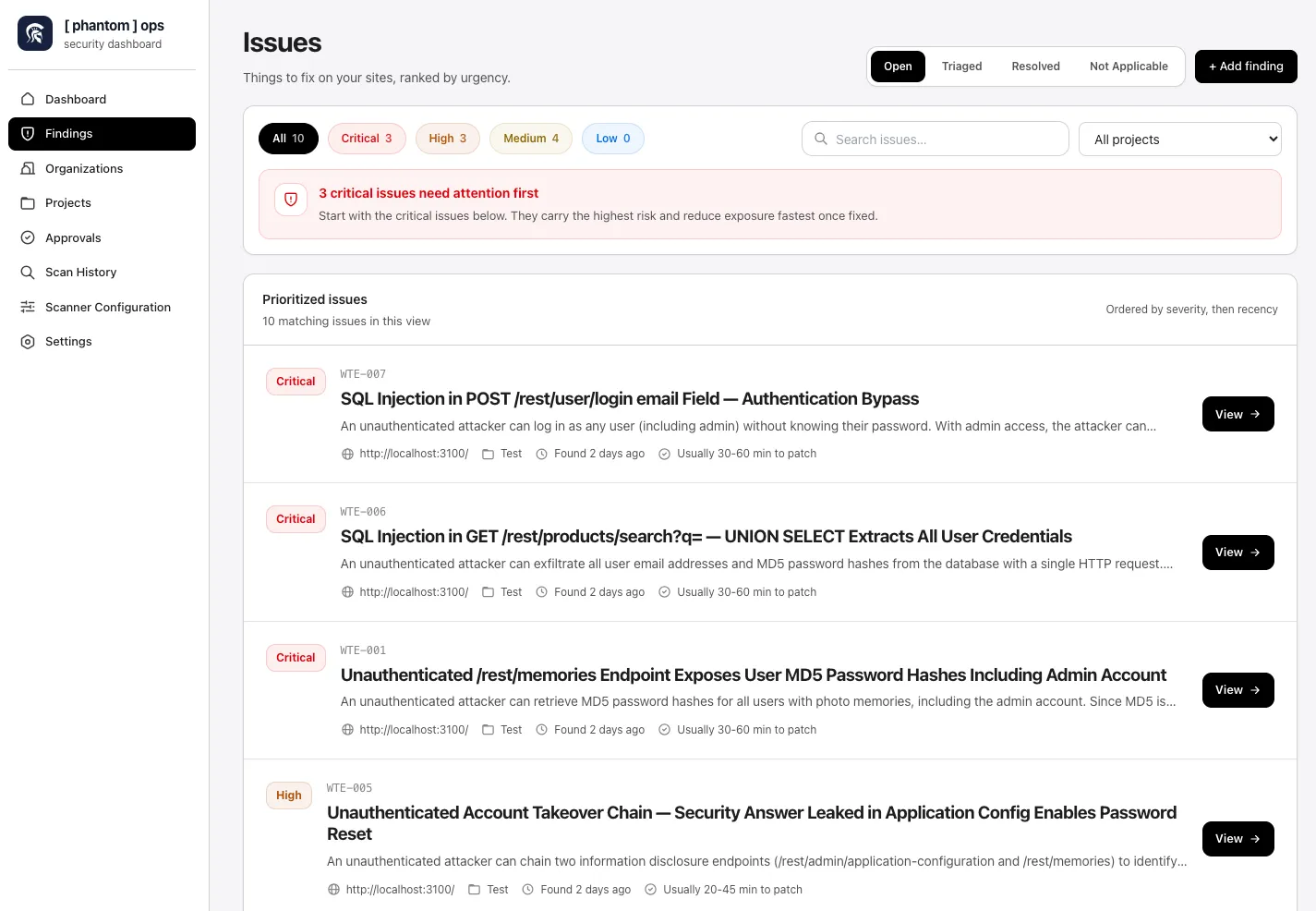
The Findings page (sidebar entry Findings) is the cross-project view of every issue PhantomOps has surfaced. It mirrors the project’s Issues tab but spans your whole organization — useful when you want to triage by severity rather than by project.
Status tabs
Section titled “Status tabs”Findings move through four statuses, each with its own tab:
- Open — confirmed findings nobody has actioned yet (the default view).
- Resolved — findings closed because they have been fixed or accepted as risk-mitigated.
- Not Applicable — findings dismissed as out of scope, false positives, or duplicates.
The Add finding button (top-right of the tab row) lets you record a finding the scanner did not surface — for example, something a teammate found by hand.
Filters
Section titled “Filters”Above the list, three filter controls narrow what you see:
- Severity chips —
All,Critical,High,Medium,Low,Informational. Each chip shows the count for the active status (e.g.,Critical 3 · High 3 · Medium 2). - All projects dropdown — switch to a single project to scope the list, or leave it on
All projectsfor the cross-project view. - Search — free-text search across finding titles, IDs, and target URLs.
Prioritization banner
Section titled “Prioritization banner”When the current view contains critical findings, a prioritization banner sits above the list — for example, “5 critical issues need attention first.” It gives the headline reason the list is ordered the way it is: criticals carry the highest risk and reduce exposure fastest once fixed.
Prioritized issues
Section titled “Prioritized issues”The list itself shows one finding per row, sorted by severity (Critical first), then by recency. Each row contains:
- Severity badge.
- The finding’s short ID (e.g.,
WTE-007) and title. - The target URL it was found on.
- A small description line — e.g., “An unauthenticated attacker can log in as any user, granting database, billing, or filesystem access without permission.”
- A View button that opens the finding detail page.
The header above the list shows the matched count (e.g., “12 matching issues in this view”) so you can tell at a glance whether the filters narrowed too far.
See also
Section titled “See also”- Export and reports — generate PDF and structured exports.
- Project Issues tab — the same list scoped to a single project.