
Overview tab
The Overview tab is the first thing you see when you open a project at /projects/<id>. It surfaces everything you need to decide what to do next without digging into individual runs or findings.
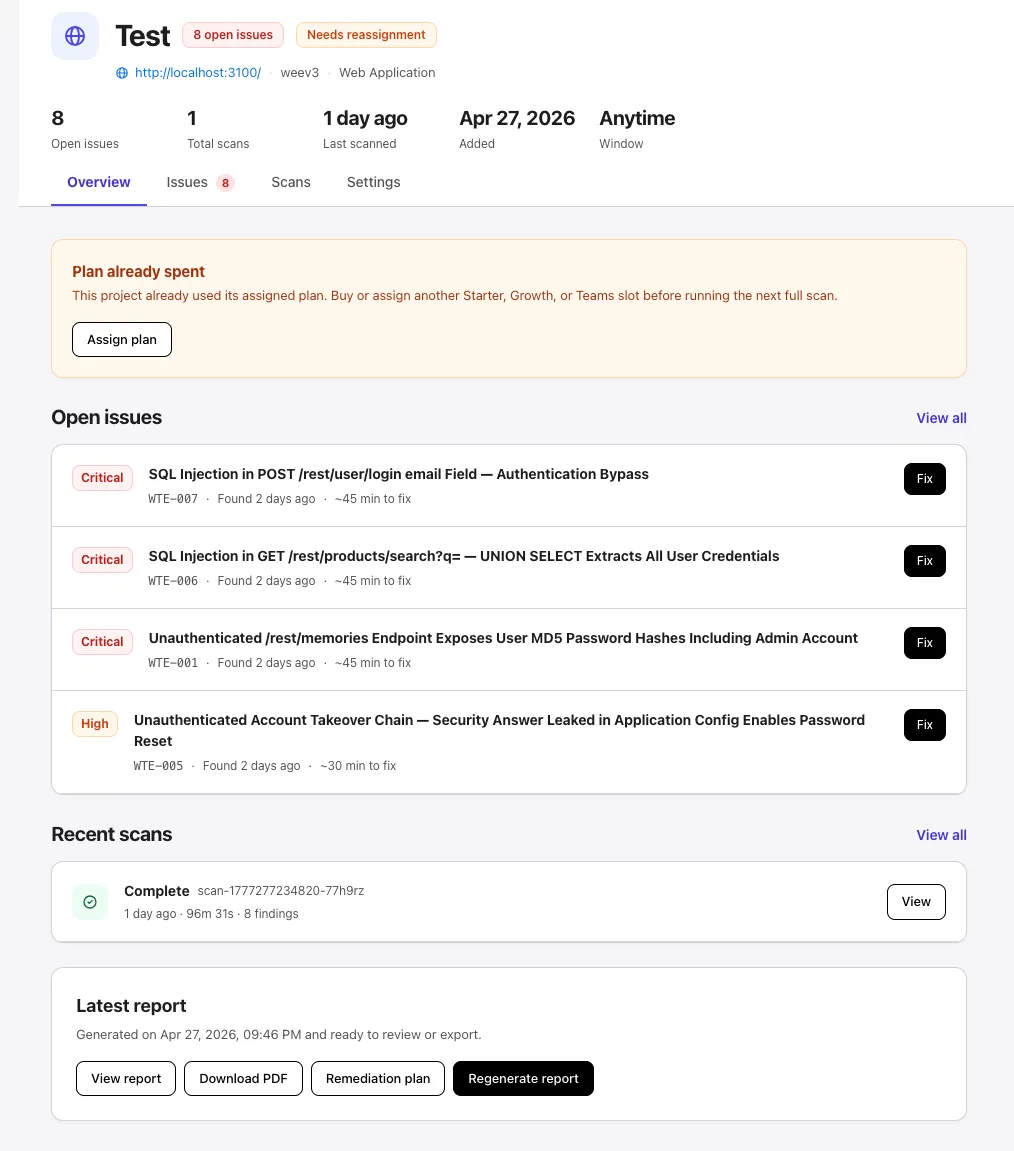
Project header
Section titled “Project header”The header shows:
- Project name with two summary chips: total open issues and current plan status (e.g.,
Needs reassignmentwhen the plan slot has been consumed). - The linked URL and project type (
Web ApplicationorWeb API). - A row of stats: Open issues, Total scans, Last scanned, Added date, and Window (the working-hours summary).
Tab bar
Section titled “Tab bar”Four tabs run across the workspace:
| Tab | Purpose |
|---|---|
| Overview | This page — high-level status. |
| Issues | Full findings list, severity-grouped, with triage actions. |
| Scans | Per-run history and reports. |
| Settings | Per-project configuration and removal. |
Selecting a tab does not navigate away from the project — the URL becomes /projects/<id>?tab=....
Plan status panel
Section titled “Plan status panel”If the project’s plan slot has been consumed, a warning panel appears near the top:
- Plan already spent — This project already used its assigned plan. Buy or assign another Starter, Growth, or Teams slot before running the next full scan.
- An Assign plan button opens the plan picker.
When the project has an assigned, unused plan, this panel does not show.
Open issues
Section titled “Open issues”A condensed list of the most pressing findings. Each row shows:
- Severity badge (
Critical,High,Medium,Low,Informational). - The finding’s short ID (e.g.,
WTE-007) and title. - When it was found and a rough fix-effort estimate.
- A Fix button that opens the finding detail.
The View all link in the top-right opens the full Issues tab.
Recent scans
Section titled “Recent scans”A card per recent scan with:
- Status icon (
Complete,Running,Error, etc.) and the scan ID. - Time since the run started, duration, and finding count.
- A View button that opens the run detail in the Scans tab.
The View all link opens the full scan history.
Latest report
Section titled “Latest report”If the project has at least one completed scan, a Latest report card surfaces the most recent report:
- Generated date and time.
- View report — opens the full report in-app.
- Download PDF — exports a PDF copy.
- Remediation plan — opens the AI-assisted remediation summary.
- Regenerate report — rebuilds the report from current findings.
For more on reports and exports, see Export and reports.
See also
Section titled “See also”- Issues tab — full findings list and triage.
- Scans tab — per-run history and reports.
- Project settings — per-project configuration.
- Manage projects — the dashboard view across all projects.