
Credentials
Most production targets need a logged-in session for meaningful coverage. PhantomOps supports three credential types: username/password, API token, and Cookie. You add them in the scan wizard’s Step 3 — Credentials or save them on the linked asset for reuse.
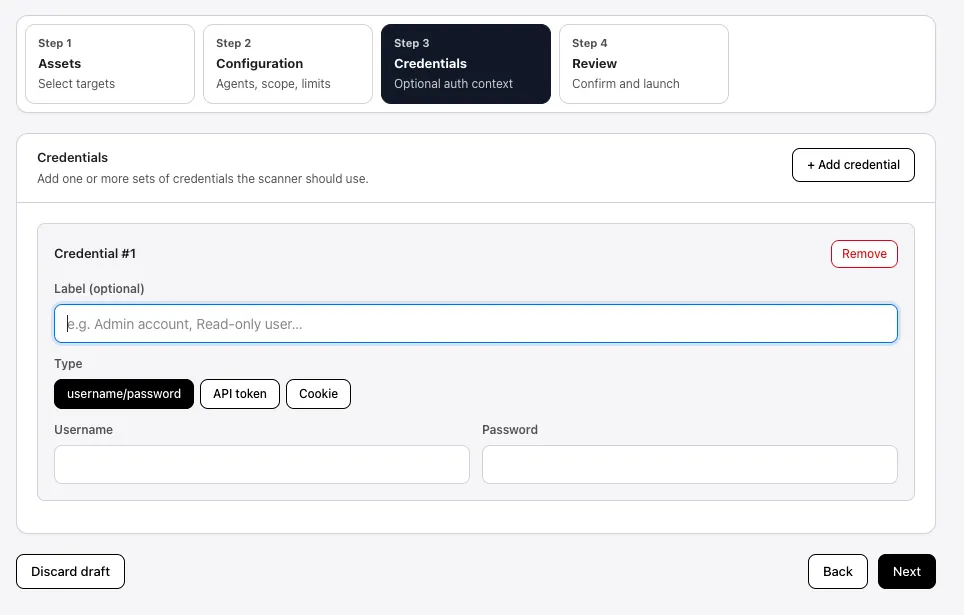
You can attach multiple credentials per scan with the + Add credential button. Each gets a label so you can tell them apart in scan logs (e.g., Admin, Read-only user).
Username and password
Section titled “Username and password”The simplest type. PhantomOps drives the login form on your site like a normal user.
Fields:
- Label (optional) — display name used in logs (e.g.,
Admin account). - Username — the username or email used to sign in.
- Password — the matching password.
PhantomOps picks the first visible login form on the target. Works for most plain web apps with a username/password form.
API token
Section titled “API token”For APIs that authenticate with a bearer token or static key in headers.
Fields:
- Label (optional)
- Token — the raw token value, e.g.,
eyJhbGciOi...orsk_live_....
PhantomOps sends the token as Authorization: Bearer <token> by default. If your API expects a different header name or auth scheme, attach an OpenAPI spec in Supporting documents so PhantomOps can derive the correct request shape.
Cookie
Section titled “Cookie”Use a cookie credential when:
- Your site uses single sign-on (Sign-In with Google, Microsoft, Okta, etc.) — PhantomOps cannot drive an external SSO login automatically.
- Your account has multi-factor authentication (2FA) — PhantomOps cannot enter a one-time TOTP code.
- The login flow has CAPTCHA, device-trust prompts, or any other step that requires a real human.
In those cases, you sign in once in your own browser, copy the session cookie, and paste it into PhantomOps. The scanner reuses that cookie to act as the signed-in user — the awkward parts of the login (SSO, 2FA) are already done.
Fields:
- Label (optional)
- Cookie — the session cookie value, or a
name=value; name2=value2cookie string for sites that need more than one cookie.
Step-by-step: capture a cookie from Chrome
Section titled “Step-by-step: capture a cookie from Chrome”Works in any Chromium-based browser (Chrome, Edge, Brave, Arc).
- Open the target site in Chrome in a new window.
- Sign in to your test account. Complete 2FA, SSO, or any other step until you land on the logged-in dashboard.
- Open DevTools:
- macOS:
Cmd + Option + I - Windows / Linux:
Ctrl + Shift + I - Or right-click anywhere on the page → Inspect.
- macOS:
- Click the Application tab in the DevTools header. (If you don’t see it, click the
»overflow menu.) - In the left panel, expand Storage → Cookies, then select the entry for your site’s domain (e.g.,
https://app.example.com). - Find the session cookie. Common names:
session,sessionid,connect.sid,auth_token,JSESSIONID,_session. If you’re not sure which, look for the cookie with the longest random-looking value and anHttpOnlyflag. - Double-click the value column for that cookie and copy it (
Cmd + C/Ctrl + C). - In PhantomOps, paste the value into the Cookie field.
- If the site requires more than one cookie (e.g., a CSRF token alongside the session), copy each one and combine them into a single string:
session=abc123; csrf=xyz789.
Step-by-step: capture a cookie from Firefox
Section titled “Step-by-step: capture a cookie from Firefox”- Open the site in Firefox and sign in to your test account (complete 2FA / SSO).
- Open Web Developer Tools:
- macOS:
Cmd + Option + I - Windows / Linux:
Ctrl + Shift + I
- macOS:
- Click the Storage tab.
- Expand Cookies in the left panel and select your site’s domain.
- Click the row of the session cookie. Right-click the row → Copy Value, or click the value cell and copy.
- Paste into the PhantomOps Cookie field.
- Test the cookie before launch. Open a fresh incognito window, paste the cookie via DevTools (or a cookie editor extension), and confirm you can reach a logged-in page. If the session works in incognito, it will work in PhantomOps.
- Mind the expiry. Many session cookies last hours, not days. If your scan runs overnight, the session may expire mid-scan and later checks will run unauthenticated. Look for a “remember me” or long-lived cookie if your app issues one, or schedule the scan close to when you capture the cookie.
- Refresh between runs. If you’re running multiple full scans on different days, capture a fresh cookie for each one rather than reusing across days.
Video walkthrough
Section titled “Video walkthrough”A short screen-recording of the cookie capture steps:
<!-- Replace REPLACE_WITH_VIDEO_ID with the YouTube ID, then remove the code fences --><iframe width="100%" height="400" src="https://www.youtube-nocookie.com/embed/REPLACE_WITH_VIDEO_ID" title="Capturing a session cookie for PhantomOps" frameborder="0" allow="accelerometer; clipboard-write; encrypted-media; gyroscope; picture-in-picture" allowfullscreen></iframe>See also
Section titled “See also”- Configure and launch → Step 3 — Credentials — where credentials sit in the wizard.
- Plans — credential support varies by tier.
- Approvals — Safe-mode review while a scan is running with credentials.