
Scan types
PhantomOps offers two scan modes you can launch from the wizard. Within a full scan, up to five agents test different parts of your application. This page explains each in plain language so you can pick what fits.
Full scan
Section titled “Full scan”This is the real assessment. PhantomOps runs every scan agent included by your assigned plan against the target — driving the application like a user and like an attacker would — then reports what it finds.
When to pick it:
- You’re ready to receive findings and a report.
- You have a plan slot assigned to the project.
- You’ve reviewed scope (working hours, out-of-scope URLs, dangerous-action mode).
A full scan consumes the assigned plan slot at launch. To run again later, assign another plan from the Projects page.
Scan agents (inside a full scan)
Section titled “Scan agents (inside a full scan)”A full scan runs multiple agents in parallel. Each agent is responsible for one kind of testing. The assigned plan decides which are included — see Plans for the matrix.
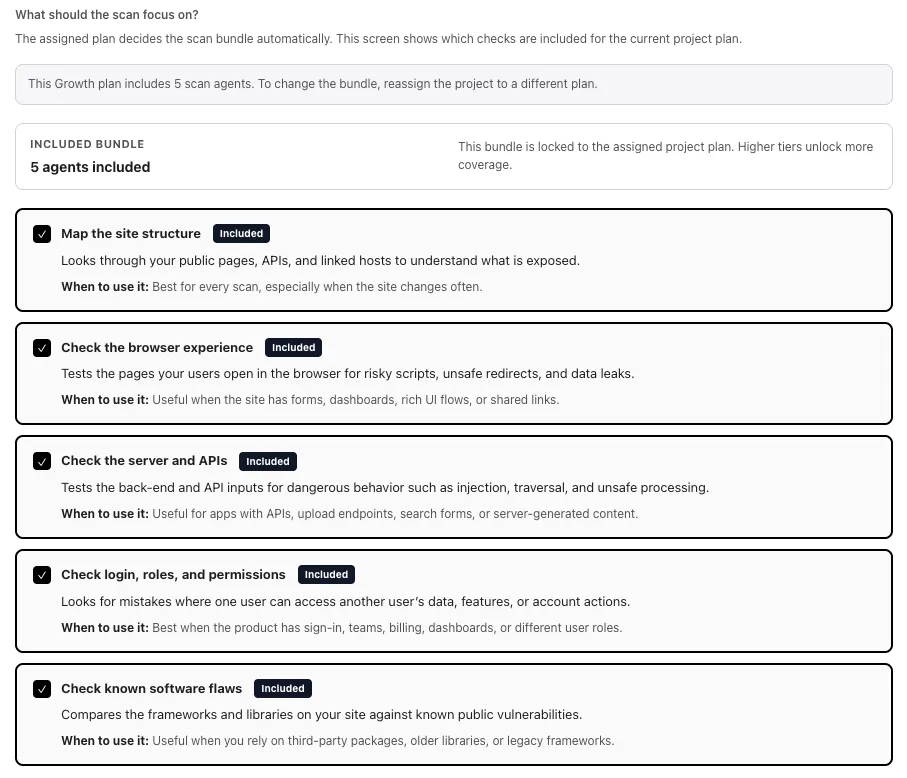
Map the site structure
Section titled “Map the site structure”Walks through your site like a search-engine crawler. Lists public pages, APIs, hidden routes that show up in JavaScript bundles, and any linked third-party hosts. Useful for every scan — this is the agent that figures out what to test next.
Check the browser experience
Section titled “Check the browser experience”Treats your site like a real user would: opens it in a headless browser, fills forms, clicks links, and watches what happens. Looks for unsafe scripts, broken redirects, leaky local storage, and content that loads from places it shouldn’t. Best when your product has a real UI.
Check the server and APIs
Section titled “Check the server and APIs”Hits your backend directly. Sends payloads, malformed inputs, and out-of-spec requests to find injection bugs, server-side request forgery, path traversal, and other issues that live behind the front-end. Best for API-heavy apps and anything with file uploads.
Check login, roles, and permissions
Section titled “Check login, roles, and permissions”Tries to act like the wrong user. If you sign in as a basic user, this agent checks whether you can see admin pages, edit other people’s data, or escalate your own role. The most useful agent for products with logins, billing, and shared workspaces.
Check known software flaws (SCA)
Section titled “Check known software flaws (SCA)”Compares your stack against a database of known public vulnerabilities. If a library, framework, or component has a published CVE, this agent flags it. Most useful when your site is built on third-party packages or older frameworks.
See also
Section titled “See also”- Configure and launch a scan — the wizard that picks the run.
- Approvals — Safe-mode decisions during a full scan.
- Credentials — how to give PhantomOps a login so deeper agents can do their job.
- Plans — which agents your plan tier unlocks.